If you use Race Day Scoring to manage your meet, MileSplit results require that each performance is linked to a MileSplit Athlete ID and the MileSplit Team ID for the athlete’s team. To ensure accurate matching, your participant data must originate from MileSplit and be imported into Race Day Scoring before results are generated.
Importing participants from MileSplit
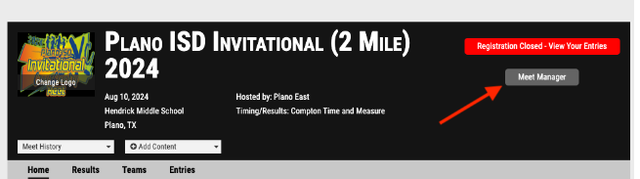
After registration closes, you must download your participant data directly from MileSplit.
Step 1: Download entries from MileSplit
Use the export option on the MileSplit site after registration closes to generate your participant file.
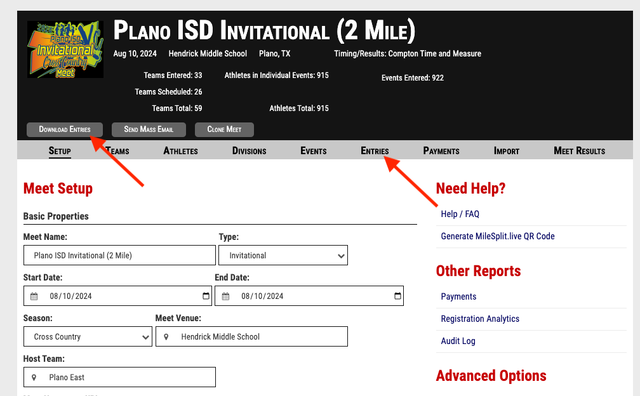
Step 2: Open the entries page
On the next page, select either:
- Download Entries, or
- The Entries tab
Both options lead to the same entries page.
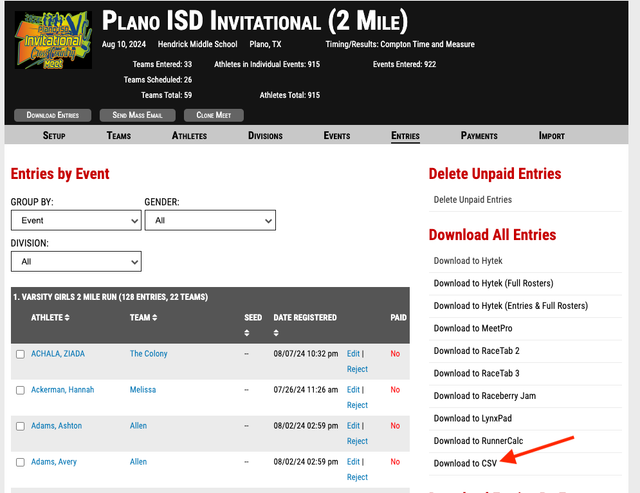
Step 3: Download the CSV file
On the right side of the entries page, locate the Download all Entries section.
- Select Download to CSV (located at the bottom of the file format list)
- This downloads a CSV file formatted for Race Day Scoring import
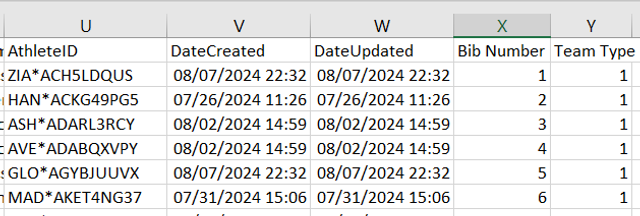
Step 4: Review the file (do not change required columns)
Open the CSV file in Excel if needed.
Important rules:
- Do not change or remove any existing columns
- You may add additional columns if needed, such as:
- Team Type (required when multiple team classifications exist)
- Bib Number
- Only add new columns; do not modify the exported structure
Importing participants into Race Day Scoring
Follow these steps each time you import participants:
Step 1: Download updated data from MileSplit
Always begin with the most recent MileSplit export.
Step 2: Clear existing data (if not first import)
If this is not your first import:
- Delete all participants and teams
- Use the Action menu in both:
- Participant view
- Team view
Step 3: Import the file
- Select Import
- Choose the downloaded MileSplit CSV file
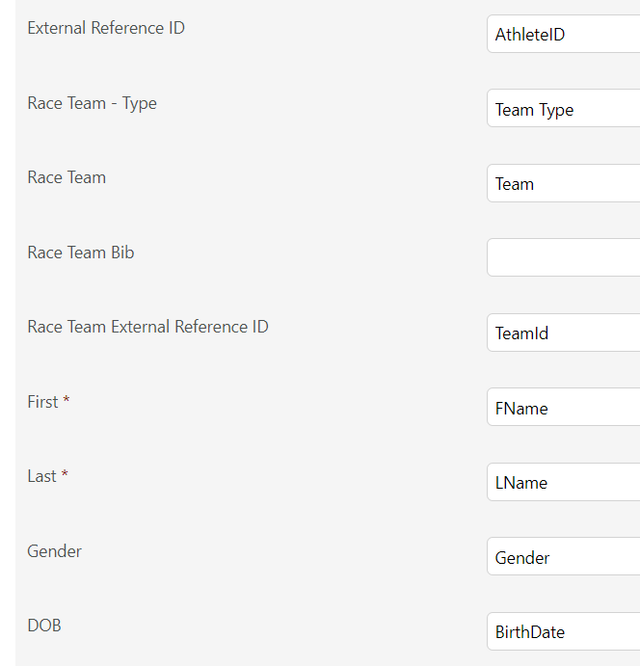
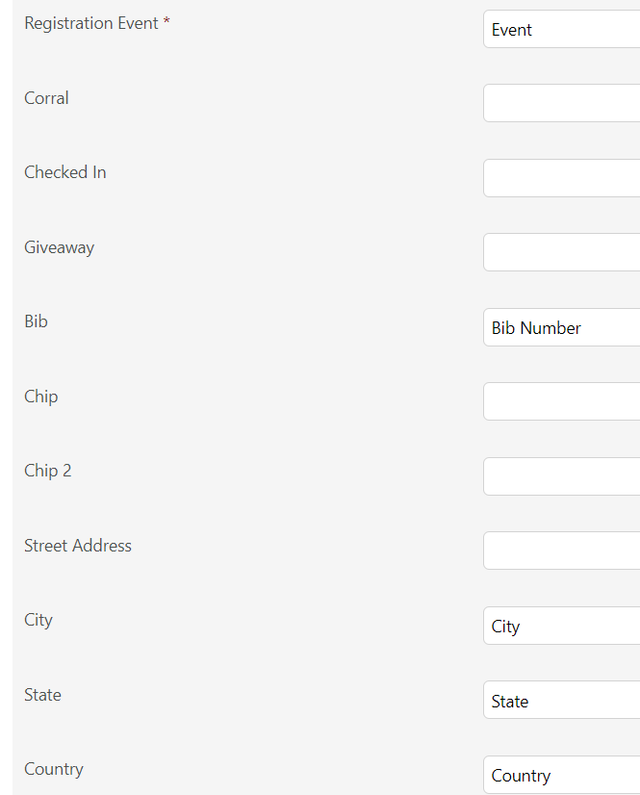
Step 4: Confirm field mapping
After selecting the file:
- Field mappings should default automatically
- Any added columns (such as Team Type or Bib Number) will appear in the mapping screen
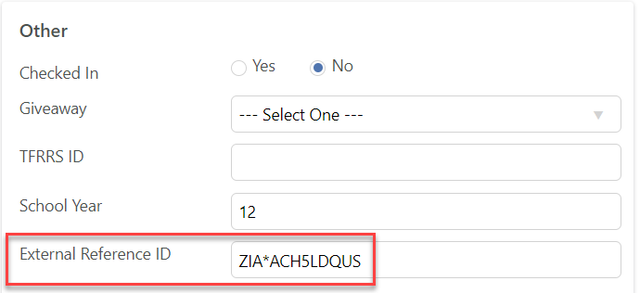
Step 5: Verify Athlete IDs
After import:
- Athlete IDs will appear on the Registration tab
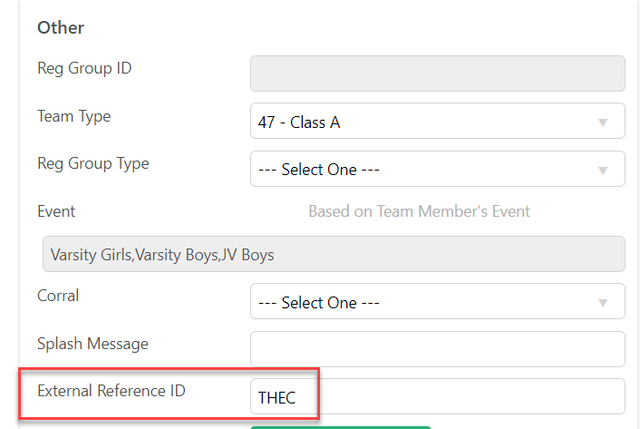
Step 6: Verify Team IDs
- Team IDs will appear when editing team information
These IDs are required for correct MileSplit result linking.
Reporting setup for MileSplit export
Race Day Scoring includes a dedicated reporting section for MileSplit exports.
Configure scored events
For each scored event:
- Select the MileSplit report section
- Ensure all events you want included in the export are assigned correctly
Mixed-gender races
If boys and girls compete together:
- Use the appropriate Scored Event Team settings to ensure correct grouping
Multiple team classifications
If your meet includes multiple team types:
- Create a separate report section for each team type
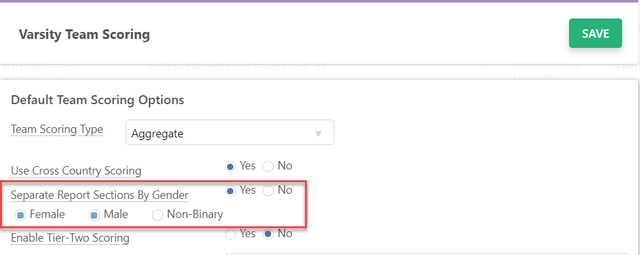
Gender-based scoring option
If you enable:
- Separate Report Sections by Gender
Then:
- Male and female sections are created automatically
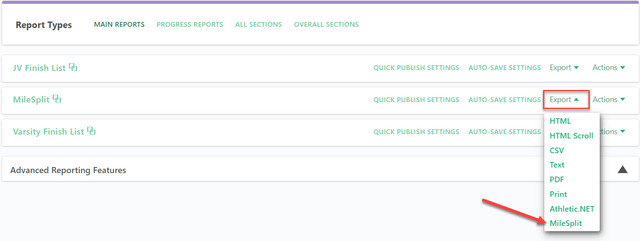
Exporting results for MileSplit
Once reporting is configured:
- Use the MileSplit export option in Race Day Scoring
- Generate the final results file for upload
Upload results to MileSplit
- Go to your MileSplit meet page.
- Hover over Add Content.
- Select Results.
- Upload the Race Day Scoring export file.
- Complete the submission process.
Check your results
After processing, review the results on MileSplit and confirm:
- All events or races appear
- Athlete names match correctly
- Teams are correctly assigned
- Places are accurate
- Times and marks are correct
- Team scores are correct, if applicable